
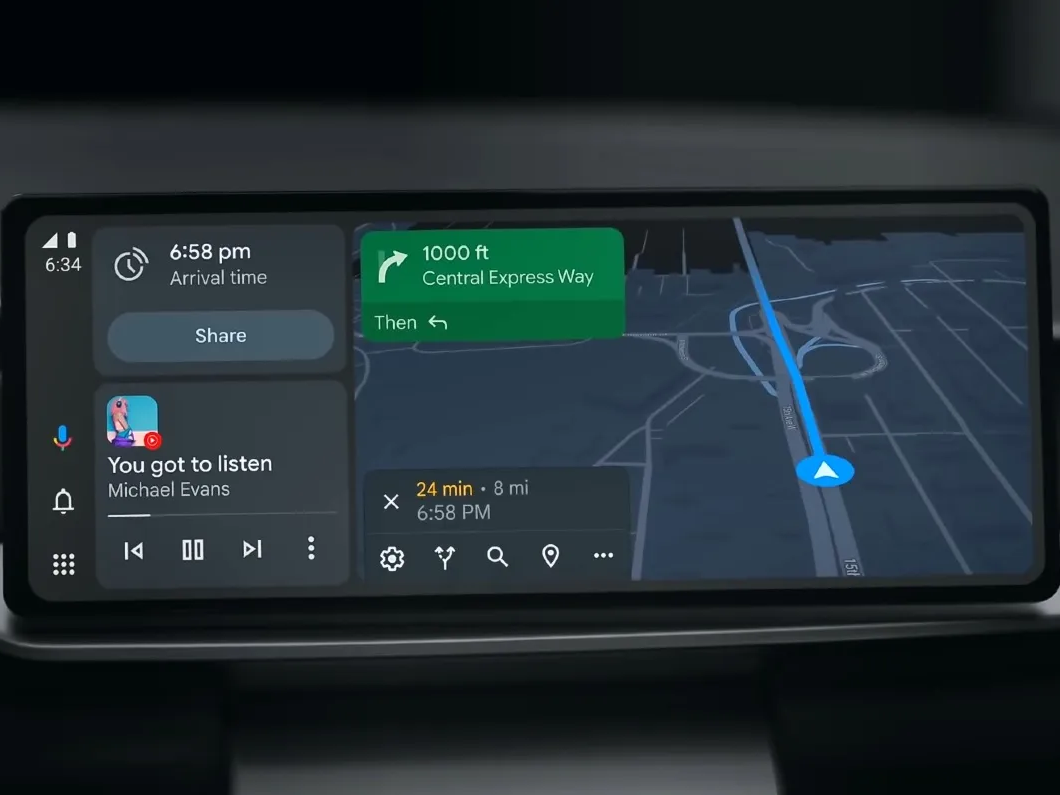
Connecting your phone to Android Auto can enhance your driving experience by allowing you to access your phone’s features and apps through your car’s infotainment system. Android Auto is a user-friendly app that offers a safe and convenient way to use your phone while driving. It allows you to make calls, send texts, listen to music, and use navigation apps without taking your eyes off the road.
To connect your phone to Android Auto, you will need a USB cable and a compatible car infotainment system. Once you have connected your phone, you can use voice commands or the touchscreen to interact with your phone’s apps and features. Android Auto offers a range of compatible apps, including Google Maps, Spotify, and WhatsApp, allowing you to stay connected and entertained while on the road.
Whether you are a daily commuter or going on a road trip, connecting your phone to Android Auto can make your driving experience safer and more enjoyable. With its intuitive interface and wide range of compatible apps, Android Auto is a must-have for any driver looking to stay connected while on the road.
Preparing Your Phone
Ensuring Your Phone Is Compatible With Android Auto
Before connecting your phone to Android Auto, you need to ensure that your phone is compatible with Android Auto. Android Auto is compatible with most Android phones running Android 6.0 or higher. However, some phones may not be compatible due to hardware or software limitations.
To check if your phone is compatible with Android Auto, go to the Android Auto website and click on the “Check compatibility” button. This will take you to a page where you can enter your phone’s make and model to see if it is compatible with Android Auto.
Updating The Android Auto App And Phone Software
To ensure that your phone is ready to connect to Android Auto, you need to update both the Android Auto app and your phone’s software.
To update the Android Auto app, go to the Google Play Store and search for “Android Auto.” If an update is available, you will see an “Update” button next to the app. Click on this button to update the app.
To update your phone’s software, go to your phone’s settings and look for the “Software update” option. If an update is available, follow the on-screen instructions to download and install the update.
Checking Bluetooth And USB Settings
To connect your phone to Android Auto, you need to make sure that Bluetooth and USB settings are enabled on your phone.
To enable Bluetooth, go to your phone’s settings and look for the “Bluetooth” option. Make sure that Bluetooth is turned on.
To enable USB settings, go to your phone’s settings and look for the “Developer options” option. If you don’t see this option, go to “About phone” and tap on “Build number” seven times to enable developer options. Once you have enabled developer options, go to “USB debugging” and make sure that it is turned on.
By following these steps, you can ensure that your phone is ready to connect to Android Auto.
Connecting Via USB
Required Cables And Ports
To connect your phone to Android Auto via USB, you will need a USB cable and a USB port in your vehicle’s infotainment system. It is recommended to use a high-quality USB cable to ensure a stable connection. Most modern cars have at least one USB port, but it’s always a good idea to check your vehicle’s manual to confirm.
Step-By-Step Instructions For Connecting Your Phone To The Vehicle
- Start by turning on your car and infotainment system. Make sure your vehicle is in park (P) before connecting your phone.
- Connect your phone to the USB port in your vehicle using a USB cable. Some cars may have multiple USB ports, so make sure you are using the correct one.
- If this is the first time you are connecting your phone to Android Auto, you may be prompted to download the Android Auto app from the Google Play Store. Follow the on-screen instructions to download and install the app.
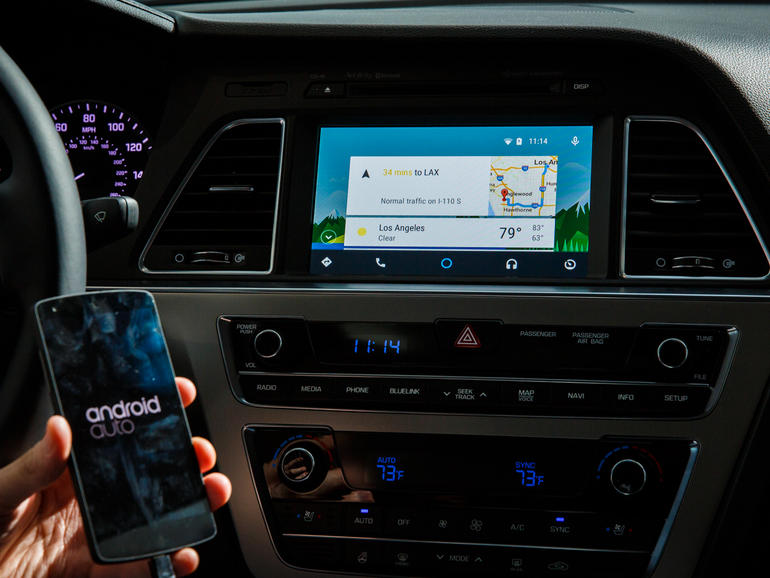
- Once your phone is connected, the Android Auto interface should appear on your vehicle’s infotainment system. If it doesn’t, try unlocking your phone and opening the Android Auto app manually.
- You’re ready to start using Android Auto! Use voice commands or the touchscreen to access your favorite apps and features.
Troubleshooting Common Connection Issues
If you’re having trouble connecting your phone to Android Auto via USB, try the following steps:
- Make sure your phone is compatible with Android Auto. Check the official Android Auto website for a list of compatible devices.
- Ensure that your USB cable is in good condition and is not damaged or frayed.
- Try a different USB cable or USB port in your vehicle.
- Restart your phone and infotainment system.
- Make sure your phone is unlocked and the Android Auto app is open.
- Check if there are any updates available for your phone or infotainment system and install them if necessary.
By following these simple steps, you can connect your phone to Android Auto via USB and enjoy all the benefits of this powerful platform.
Connecting Via Bluetooth
Android Auto can also be connected to your vehicle’s infotainment system via Bluetooth. This method is useful for those who don’t want to use a USB cable or whose car doesn’t have a USB port.
Enabling Bluetooth On Both The Phone And The Vehicle
Before connecting to Android Auto via Bluetooth, ensure that Bluetooth is enabled on both your phone and your vehicle’s infotainment system. To enable Bluetooth on your phone, go to settings and turn on Bluetooth. To enable Bluetooth on your vehicle’s infotainment system, refer to your vehicle’s user manual.
Pairing The Devices: Step-By-Step Guide
Once Bluetooth is enabled on both devices, follow these steps to pair your phone with your vehicle’s infotainment system:
- On your phone, open the Android Auto app.
- Tap the menu icon in the top-left corner of the screen.
- Select “Settings.”
- Under “Wireless Settings,” select “Add a new device.”
- Select your vehicle from the list of available devices.
- Follow the on-screen prompts to complete the pairing process.
Addressing Potential Connectivity Problems
If you’re having trouble connecting your phone to your vehicle’s infotainment system via Bluetooth, try the following troubleshooting steps:
- Ensure that Bluetooth is enabled on both your phone and your vehicle’s infotainment system.
- Make sure that your phone is within range of your vehicle’s infotainment system.
- Check that your vehicle’s infotainment system is set to “discoverable” mode.
- Try restarting both your phone and your vehicle’s infotainment system.
- If all else fails, consult your vehicle’s user manual or contact the manufacturer for further assistance.
By following these simple steps, you can easily connect your phone to your vehicle’s infotainment system via Bluetooth and enjoy the benefits of Android Auto.
Conclusion
Recap Of The Connection Methods
Connecting your phone to Android Auto can be done in a few simple steps. The most common method is to connect your phone to your car using a USB cable. However, some cars support wireless connections as well. It’s important to note that not all phones and cars are compatible with Android Auto, so it’s best to check the official Android Auto website before attempting to connect.
Encouragement To Explore Android Auto Features
Once you’ve connected your phone to Android Auto, you’ll have access to a variety of features that can make your driving experience more convenient and safer. You can use voice commands to make calls, send texts, and play music without taking your hands off the wheel. You can also use Android Auto to access navigation and other apps that are optimized for use while driving.
Final Thoughts On The Convenience And Safety Of Using Android Auto While Driving
Overall, using Android Auto while driving can be a convenient and safe way to stay connected while on the road. By using voice commands and hands-free controls, you can keep your focus on the road and avoid distractions. While it’s important to remember that no technology can completely eliminate the risks of distracted driving, Android Auto can help reduce them.
In conclusion, connecting your phone to Android Auto is a simple process that can provide a variety of benefits for drivers. By following the steps outlined in this article and exploring the features of Android Auto, you can make your driving experience safer and more convenient.
Frequently Asked Questions
What steps are required to connect my phone to Android Auto using Bluetooth?
Connecting your phone to Android Auto using Bluetooth requires a few simple steps. First, make sure your phone is compatible with Android Auto. Then, turn on Bluetooth on your phone and your car’s infotainment system. Next, open the Android Auto app on your phone and follow the prompts to connect your phone to your car’s display. If you encounter any issues, refer to the troubleshooting section below.
Why isn’t my phone connecting to Android Auto, and how can I troubleshoot this?
If your phone isn’t connecting to Android Auto, there are a few things you can try to troubleshoot the issue. First, make sure your phone is compatible with Android Auto and that it meets the system requirements. Next, check that your phone is connected to your car’s infotainment system via Bluetooth or USB cable. If you’re still having issues, try restarting your phone and your car’s infotainment system. If the problem persists, refer to the Android Auto Help Center for more assistance.
How can I set up Android Auto to connect to my car display automatically?
To set up Android Auto to connect to your car display automatically, follow these steps:
- Open the Android Auto app on your phone.
- Tap the menu icon in the top-left corner of the screen.
- Select “Settings” from the menu.
- Scroll down and select “Autolaunch.”
- Toggle the switch to “On.”
- Select your car’s Bluetooth device from the list of available devices.
What is the process for connecting my phone to Android Auto without a USB cable?
To connect your phone to Android Auto without a USB cable, you’ll need to make sure your car’s infotainment system supports wireless Android Auto. Once you’ve confirmed compatibility, follow these steps:
- Turn on Bluetooth on your phone and your car’s infotainment system.
- Open the Android Auto app on your phone.
- Follow the prompts to connect your phone to your car’s display.
Can I use Android Auto wirelessly, and if so, how?
Yes, you can use Android Auto wirelessly if your car’s infotainment system supports it. To use Android Auto wirelessly, make sure your phone is connected to your car’s infotainment system via Bluetooth and follow the prompts in the Android Auto app to connect your phone to your car’s display.
How do I access and use Google Maps on my car display via Android Auto?
To access and use Google Maps on your car display via Android Auto, follow these steps:
- Connect your phone to your car’s infotainment system via Bluetooth or USB cable.
- Open the Android Auto app on your phone.
- Select “Google Maps” from the list of available apps.
- Follow the prompts to enter your destination and start navigation.